

How It Works
- Describe what you want in plain language, with or without a starting URL
- The agent reads your prompt, breaks it into steps, and navigates the site
- Data is extracted into your schema and delivered to your destination
Writing good prompts
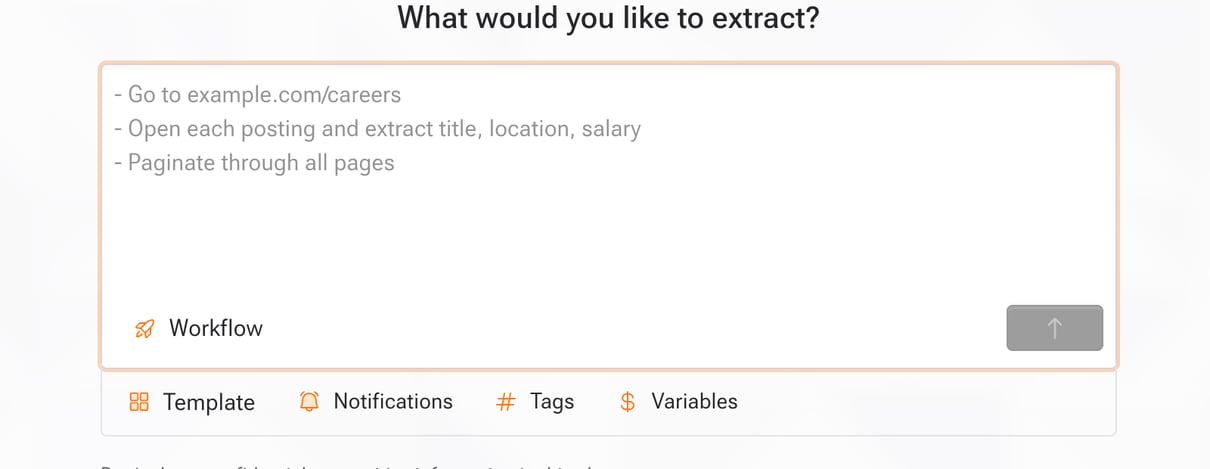
Good prompts are specific and sequential: tell the agent where to go, what to interact with, what to extract, and how far to continue. The examples below show the pattern.Use the setup prompt
When creating a workflow in the dashboard, the setup prompt combines your instructions with optional workflow configuration. Use the controls below the editor to choose a template, notification channels, tags, or the workflow type. You can also insert reusable items while typing:
Selecting an item adds a chip to the prompt and updates its related workflow setting. Remove the chip to remove the channel or tag selection. You can create a variable, tag, or notification channel from its selector when needed.
Choose Workflow for a dataset that runs once or on a schedule. Choose Real-time to monitor a site continuously; real-time workflows require a notification channel unless a selected template provides notifications.
Real-time monitoring is available on request. Contact support to enable it for your workspace.
Example Prompts
E-commerce product catalog
E-commerce product catalog
Procurement portal behind login
Procurement portal behind login
Financial document extraction
Financial document extraction
Job board with detail pages
Job board with detail pages
Variables
Use reusable variables in your prompt. Variables are replaced at runtime.- Type
$in the setup prompt to see available variables - Select a variable to insert a chip that keeps its stored key and ID
- Secret variables are encrypted and never sent to LLMs
- Store entire prompts as variables to reuse them across workflows
Using in Code
Pass your prompt viauserPrompt: