

How secrets work
- Owners and Admins can create, rotate, rename, and permanently delete secrets.
- Team members can see a secret’s key, provider, status, and timestamps, but never its value.
- A workflow receives only the secrets explicitly linked to it.
- Secret values are not sent to an LLM or returned by the API.
- User scripts receive no Google Secret Manager credential.
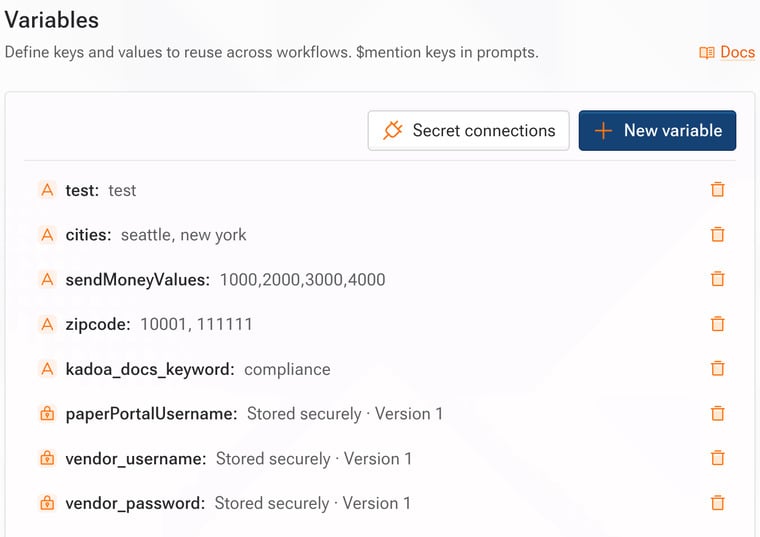
Choose where the value is stored
Kadoa-managed
Kadoa creates and versions the value in its Google Secret Manager project. Rotating the secret creates and verifies a new version before disabling the previous version.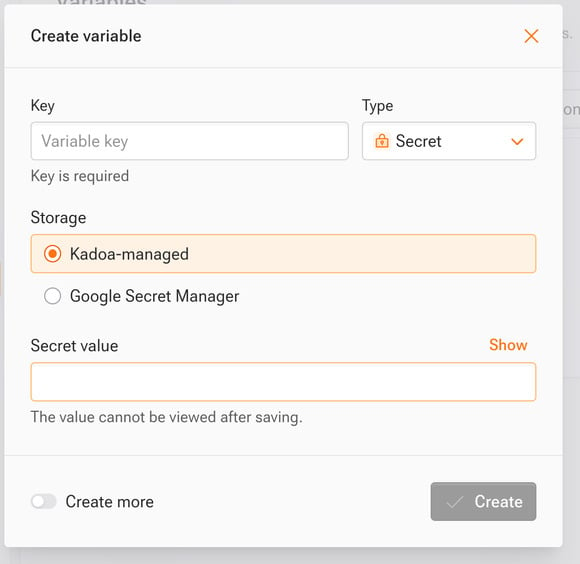
Google Secret Manager
Connect a Google Cloud project, then reference an existing secret. The recommended connection uses a customer grant: grant the displayed Kadoa broker identity Secret Accessor on the exact secret you want to use. Kadoa resolves that secret’s latest enabled version at execution time. You can revoke the grant in Google Cloud at any time. Future executions then fail before the script starts.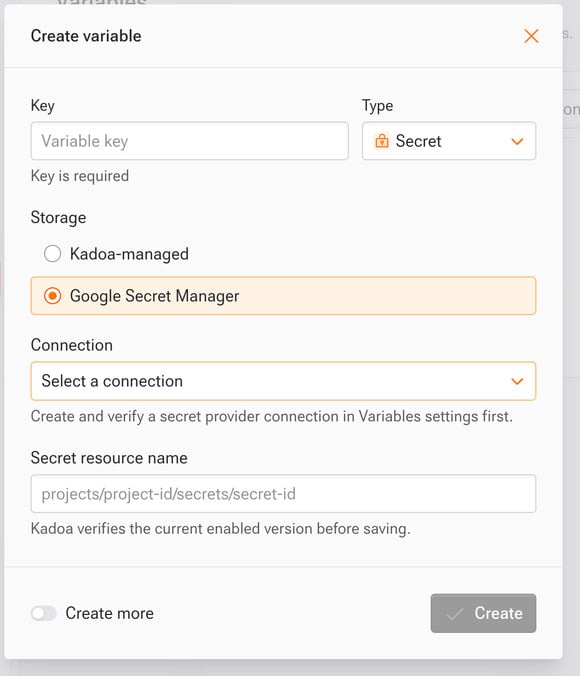
Create a secret
- Open Team settings and select Variables.
- Select Create variable.
- Enter a unique key and choose Secret.
- Choose Managed by Kadoa or a connected Google Secret Manager project.
- Enter the write-only value or exact Google secret resource name.
- Select Save.