

How data quality works
Two layers of checks run at the end of every workflow run:- Rules are per-field checks for each schema field, such as the format of a string. Kadoa generates a default set of rules for each workflow, based on your data. You can change them at any time.
- Platform metrics are built-in metrics that Kadoa computes for you, such as completeness. They need no configuration.
View data quality results
You view results in the dashboard.- Open a workflow from Workflows.
- Select Data quality in the side rail.
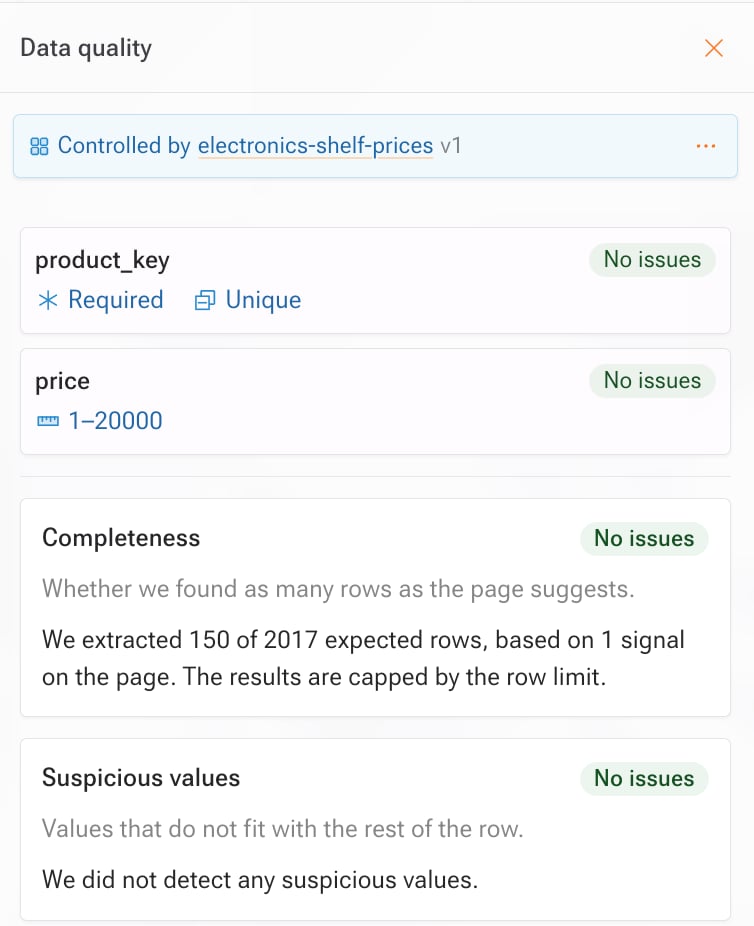
- Field rules: one card per field that has rules, with its checks summarized.
- Platform metrics: checks Kadoa runs on every workflow, such as completeness.
- Below the field name, chips summarize its checks, for example Required, Unique, or a range such as 1–20000.
- On the right, No issues means every rule passed on this run. Failing checks turn red and show how many rows fail.
Edit a field’s rules
- Dashboard
- SDK & API
- Open the workflow and select Data quality in the side rail.
- Select the field’s card. For a field without rules, select Add rules, then select the field.
- Set the rules. For what each rule checks, see Rules.
-
Select Save changes.
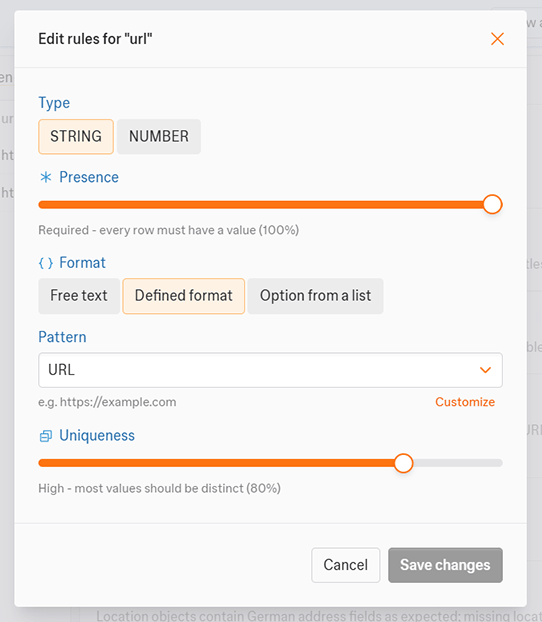
Rule changes take effect on the next run. The results shown now stay the same until another run finishes.
Read the rules of a workflow
In the dashboard, the field cards in the Data quality panel show the rules. With the SDK or the API, read them like this:Remove the rules of one field
Other fields keep their rules.- Dashboard
- SDK & API
- Open the workflow and select Data quality in the side rail.
- Select the field’s card.
- Select Delete rule.
Template-managed workflows
When a workflow is linked to a template that owns its data quality rules, the workflow inherits the rules from the template. You cannot edit them on the workflow. The panel shows Controlled by with the template name, as in the screenshot in View data quality results. To change the rules, edit the template and apply the new version to this workflow. Or unlink the workflow from its template and edit the rules directly. With the SDK or API, editing the rules of a template-linked workflow returns409 with code TEMPLATE_CONTROLLED_FIELD.
Rules
Each schema field can have its own validation rules, specific to the field’s data type.Type
The type defines which rules are available. The default matches the schema’s data type, but you can cast values to another type for validation.Presence
Presence sets the minimum percentage of rows where the field must have a value. If fewer rows than the target have a value, Kadoa flags the field.Uniqueness
Uniqueness sets the minimum percentage of values that must be unique in the column. If fewer rows than the target are unique, Kadoa flags the field.String fields
You can validate strings against one of three format kinds. Only one applies at a time.- Free text: any value is allowed. Optionally match a character set, such as “Alphanumeric”, and cap the minimum or maximum length.
- Defined format: match a pattern preset, such as “URL”, or add a custom regular expression.
- Option from a list: match an options preset, such as “Language (2-letter)”, or add a custom list of allowed values.
Selecting Customize on any preset prefills the custom regex or list. Use it as a starting point and adjust it.
<h1>Foo</h1> bar counts 1). Set a minimum of 1 to require raw HTML markup, or a maximum of 0 to forbid it.
Number fields
- Maximum decimal places: the maximum allowed number of decimal places, such as “0” for whole numbers.
- Range: the minimum and maximum allowed values. You can set either or both.
Rule shapes
In the SDK and API, thekind of a field selects its rule shape. Kadoa casts the field’s values to that type before evaluation.
presence and uniqueness take a target of 0, 20, 40, 60, 80, or 100 percent. A string format is one of three kinds:
FREE_TEXTwith a charset presetFORMATwith a pattern preset or a custom regular expressionLISTwith a list preset or custom values
DataQualityRules. The Python SDK takes and returns them as plain dicts.
Platform metrics
Platform metrics are built-in and need no configuration. Select a metric’s card in the panel to open its detail view.Completeness
Completeness reports whether Kadoa found as many rows as the source suggests. It compares the actual row count against the expected row count for the run, and reports:- Actual vs expected row count
- Any qualifying signals detected from the source, such as pagination information
- Whether a configured limit capped the result
Suspicious values
Suspicious values inspects each row for values that do not fit with the rest of the row, such as implausible or out-of-domain values. It reports how many columns have any flagged values, with examples. The detail view shows the flagged columns with example values.When changes take effect
- Validation runs at the end of every workflow run.
- Kadoa saves rule edits right away, but they apply only from the next run. Edits do not change the results of the current run.
Limits
- A rule tree nests at most 4 levels deep and holds at most 200 rules.
Related
- Data quality API reference
- Notifications: get a Data quality issues alert when a run’s data quality issues change