

Available for Enterprise customers.
- browser interactions (clicks, forms)
- search, crawling, or multi-step navigation
- data extraction from files (PDF, Excel, CSV)
Prerequisites
- Kadoa account with API key
- SDK installed:
npm install @kadoa/node-sdkoruv add kadoa-sdk
When to Use
Custom AI Navigation is ideal for scenarios that were previously difficult or impossible to automate:- Browser interactions – Handle multi-step click and type interactions before extracting data
- File extraction – Locate, download, and extract the right content from files (PDF, Excel, CSV)
- Extraction behind login – Access portals before collecting information
- Search and crawling – Start from a root URL, then find and retrieve content based on keywords
How to Use
- In UI
- In Code
Create a workflow with Custom AI Navigation using the dashboard:
- Define the source URL - Start with any website URL where your data extraction begins
- Define your data schema
- Auto-detected schema: The agent extracts what it discovers on the page or what you describe in your prompt
- Manually defined schema: The AI agent uses any pre-defined or manually created schema
- Choose Custom AI Navigation mode - Select “Custom AI Navigation” as your navigation method
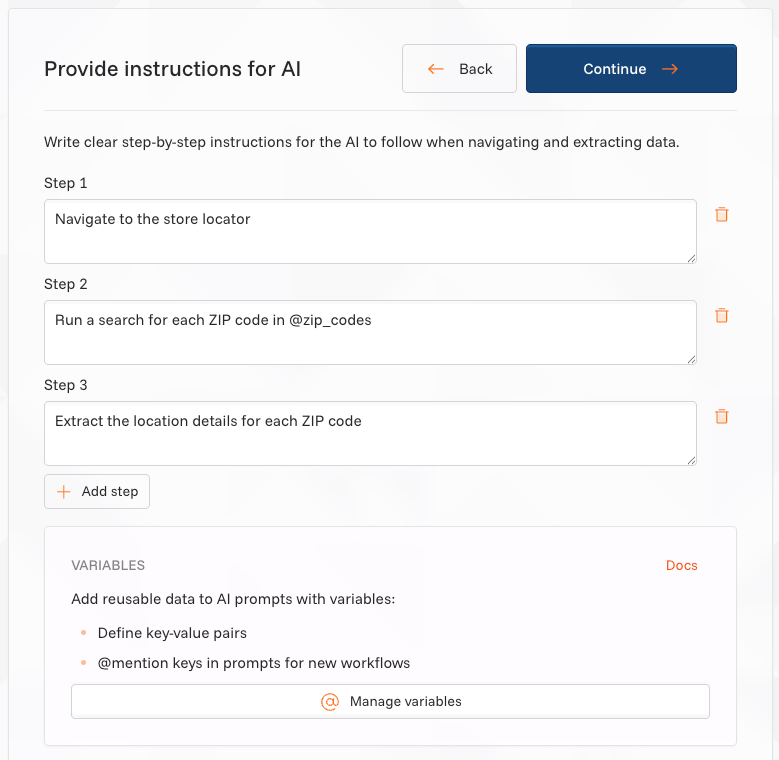
- Write your instructions - Describe the step-by-step navigation and extraction process in natural language
- Test and deploy - Run a test extraction to validate the workflow, then deploy for production use
Writing Effective Prompts
For best results, try to be specific with your instructions:1. Start with navigation
Use a Precise Prompt indicating exactly where to go and what to click.- Precise Prompt: “Navigate to the careers section, then click on ‘Engineering roles’”
- Broad Prompt (will not work): “Find job postings”
2. Handle interactions
Describe how to interact with forms, filters, or authentication explicitly.- Precise Prompt: “Search for ‘sensors’ and filter by ‘in stock’”
- Broad Prompt (will not work): “Find relevant products”
3. Specify data fields
Clearly list which data fields to extract.- Precise Prompt: “Extract: product_name, price, brand, availability”
- Broad Prompt (will not work): “Get product information”
Variables
Variables allow you to define reusable values that can be referenced in your Custom AI Navigation prompts using@variableName syntax.
Learn more about Variables →
Quick Reference
- Type
@in your prompt to see available variables - Variables are replaced with their values at runtime
- Secret variables are encrypted and never sent to LLMs