

Available for Enterprise customers.
Configure Compliance Rules
Your compliance team can configure automated checks in the Compliance Center:- Navigate to the Compliance Center in your dashboard
- Review the list of available rule types
- Enable or disable rules based on your organization’s requirements
- Configure rule-specific settings where applicable
Available Rule Types
| Rule Type | Description |
|---|---|
| Source Blacklisting | Block specific domains or URLs |
| Captcha & TOS Enforcement | Prevent automated circumvention |
| PII Detection | Detect and handle personal data |
| robots.txt Check | Respect website directives |
| Custom Restrictions | Fine-grained custom rules |
Set Up Approval Flow
Enable workflow approval for enhanced oversight:- Go to Compliance Center → Settings
- Enable Require approval for new workflows
- Designate compliance officers who can approve workflows
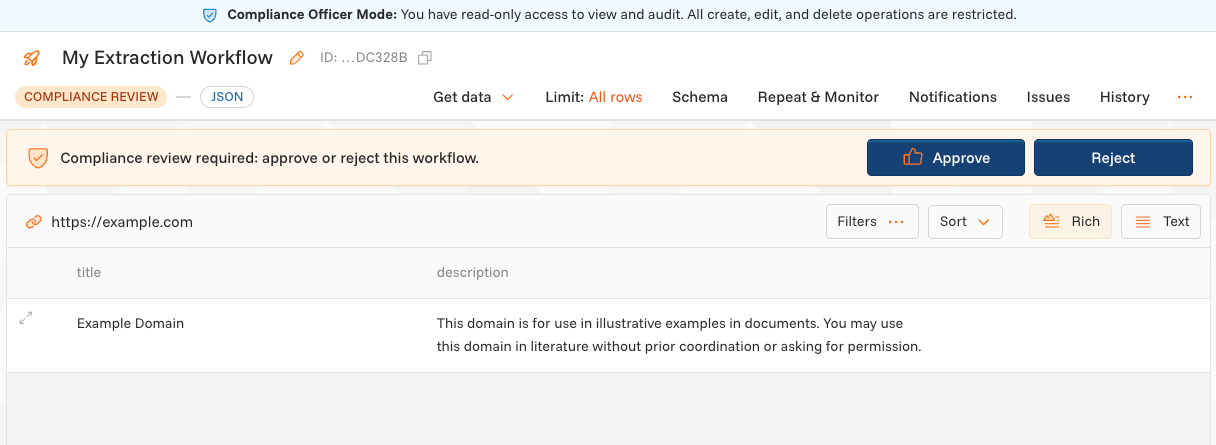
How Approval Works
- User creates a new workflow
- Workflow enters Pending Approval state during preview
- Compliance officer receives notification
- Officer reviews the workflow configuration and sample data
- Officer approves or rejects with feedback
- If approved, workflow becomes active
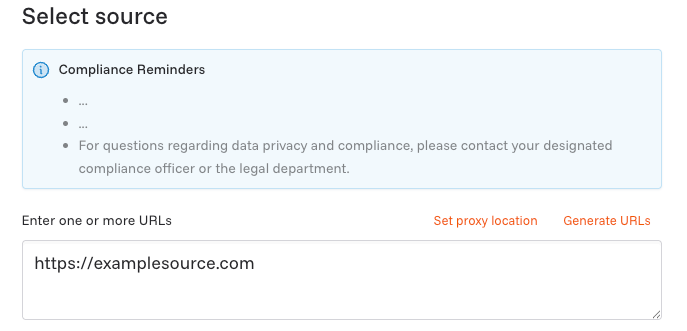
Add Compliance Reminders
Display custom hints when users create new workflows:- Go to Compliance Center → Settings
- Add your compliance reminder text
- Save changes
Assign Compliance Officers
- Go to Settings → Team Members
- Find the user you want to assign
- Change their role to Compliance Officer
- Read-only access to all workflows and execution logs
- Access to compliance reports and audit trails
- Ability to approve or reject workflows
Generate Compliance Reports
- Go to Compliance Center → Reports
- Select the report type:
- Workflows History: All workflows with metadata
- Audit Log: All platform interactions
- Set date range if applicable
- Click Download
Report Contents
Reports include:- Data sources accessed or attempted
- Timestamps for workflow runs
- User who created/modified workflows
- Version history and configuration changes
- Number of records extracted
- Status codes from accessed sources
Monitor Activity
Use the Activity Log to track all platform activities:- Go to Activity Log in the sidebar
- Filter by:
- Workflow
- User
- Date range
- Event type
- Export filtered data for compliance reviews