

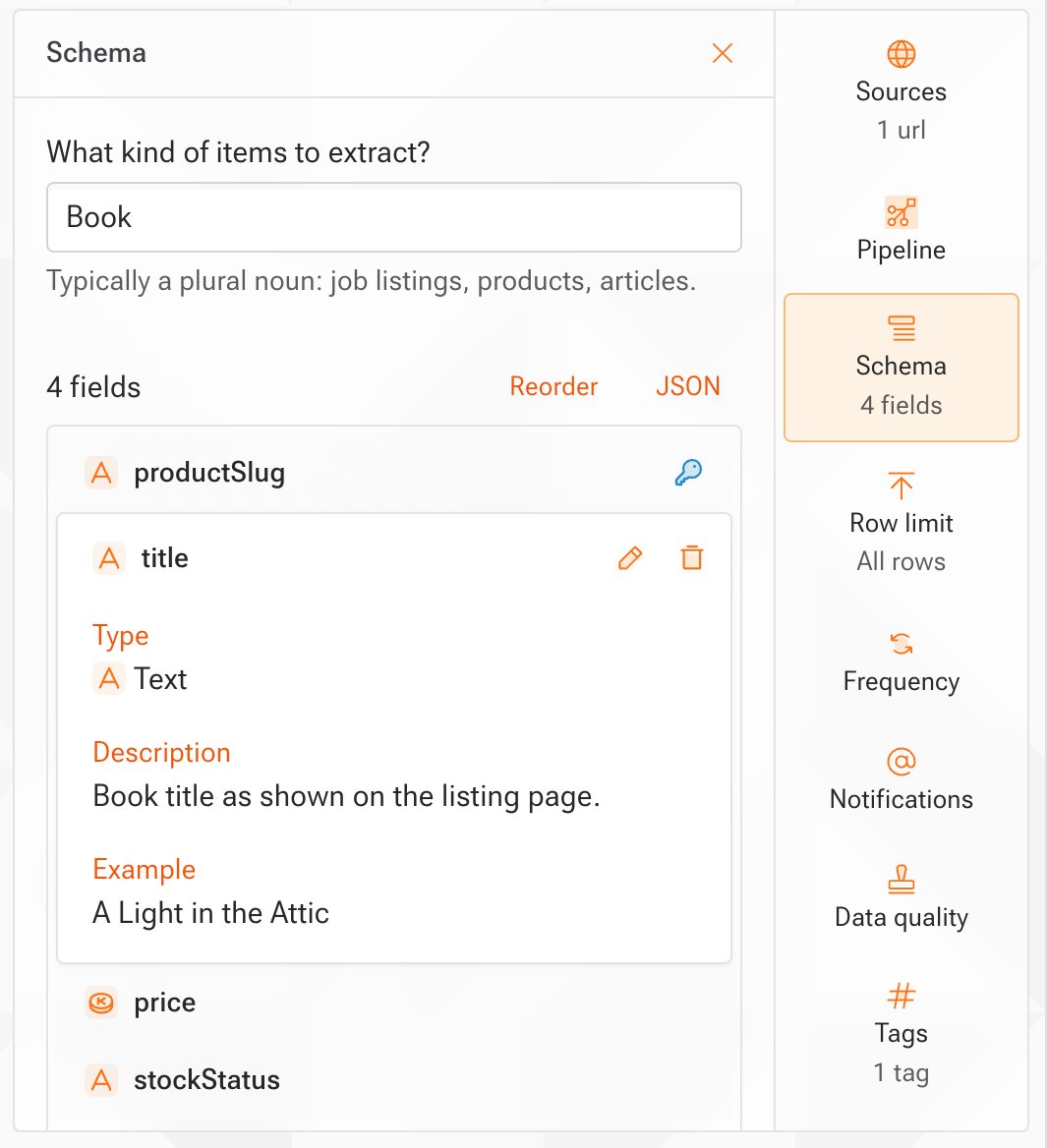
How the schema is created
- If you name the fields in your prompt (for example, “extract title, price, and rating”), the Assistant uses exactly those.
- If you don’t, the Assistant recommends fields based on the source.
Edit the fields
Click a field for read-only details; the pencil opens an inline edit form. Add field opens a dialog, JSON enables bulk editing, and Reorder rearranges fields. Mark fields as key fields to improve record matching and data quality. Tip: mark scalarSTRING, NUMBER, or LINK fields expected to be unique and non-empty as key fields. In JSON, set isKey: true. Learn more in Data Quality.
When you add a field, you can pick a data type or a function — a field Kadoa computes for you, such as Unique ID or Custom categories.
Use an existing schema
Instead of starting fresh, you can base the schema on:- Your schemas: schemas you have created before.
- Kadoa schemas: pre-built schemas for common use cases.
If your workflow uses a template, its schema is managed by the template. Edit it through the template instead of here.
Reuse a schema across workflows
To reuse the same schema across multiple workflows, save it in a template. A template packages a prompt, schema, data quality rules, and notification settings into a reusable, versioned unit.- Open Templates and click Create template
- Define your fields in the Schema tab, or save an existing workflow’s schema as a template
- When you create a workflow, choose the template to pre-fill its schema