> ## Documentation Index
> Fetch the complete documentation index at: https://docs.kadoa.com/llms.txt
> Use this file to discover all available pages before exploring further.
# Secret Variables
> How Kadoa securely handles sensitive data like passwords and API keys
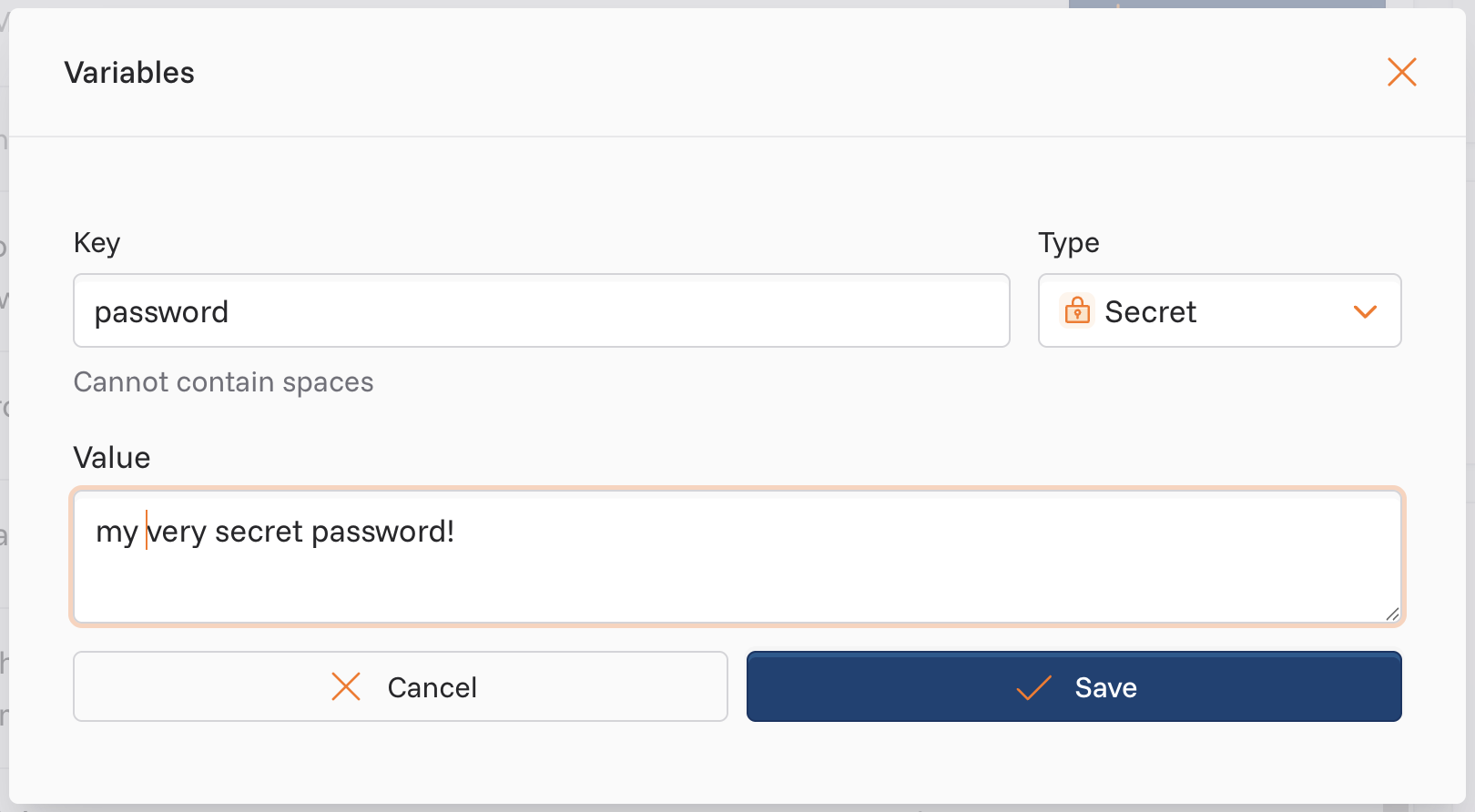
The **Secret** data type is for values that are meant to stay secret, like passwords or other access keys. Kadoa handles these fundamentally differently from other variable types.
## How Secrets Are Protected
 ### 1. Encrypted in Transit
The secret is encrypted during transit to our server by HTTPS to avoid man-in-the-middle attacks.
### 2. Encrypted at Rest
Our server stores secrets using Google Cloud Platform (GCP) Secret Manager, where they are encrypted at rest.
### 3. Minimal Memory Exposure
When the AI agent runs your prompt:
1. It accesses the secret and loads it into memory
2. Uses it for the required action (e.g., filling a password field)
3. Immediately deletes it from memory
Secrets are **never sent to any LLM**. The secret is only accessed by our server momentarily while being sent to the browser.
## Security Architecture
The storage and usage of secrets is similar to a password manager: everything is encrypted until the exact moment it's needed, at which point it is accessed, used, and then immediately forgotten.
### 1. Encrypted in Transit
The secret is encrypted during transit to our server by HTTPS to avoid man-in-the-middle attacks.
### 2. Encrypted at Rest
Our server stores secrets using Google Cloud Platform (GCP) Secret Manager, where they are encrypted at rest.
### 3. Minimal Memory Exposure
When the AI agent runs your prompt:
1. It accesses the secret and loads it into memory
2. Uses it for the required action (e.g., filling a password field)
3. Immediately deletes it from memory
Secrets are **never sent to any LLM**. The secret is only accessed by our server momentarily while being sent to the browser.
## Security Architecture
The storage and usage of secrets is similar to a password manager: everything is encrypted until the exact moment it's needed, at which point it is accessed, used, and then immediately forgotten.
 ## When to Use Secrets
Use the Secret data type for:
* Login passwords
* API keys and tokens
* Authentication credentials
* Any sensitive value that should not be visible in logs or UI
## Creating a Secret Variable
1. Navigate to **Team Settings** in your dashboard
2. Click **Add variable**
3. Enter a unique **Key** (e.g., `portalPassword`)
4. Select **Secret** as the Data Type
5. Enter the secret value
6. Click **Save**
Kadoa masks the value (`••••••••`) after saving. You cannot view it again.
## Using Secrets in Prompts
Reference secrets the same way as regular variables:
```
- Navigate to https://portal.example.com/login
- Enter @username in the email field
- Enter @password in the password field
- Click the Sign In button
```
Where `@password` is a Secret variable.
## Learn More
* [Variables →](/docs/workflows/variables)
* [Writing Prompts →](/docs/workflows/prompts#writing-effective-prompts)
* [Security Overview →](/docs/security/introduction)
## When to Use Secrets
Use the Secret data type for:
* Login passwords
* API keys and tokens
* Authentication credentials
* Any sensitive value that should not be visible in logs or UI
## Creating a Secret Variable
1. Navigate to **Team Settings** in your dashboard
2. Click **Add variable**
3. Enter a unique **Key** (e.g., `portalPassword`)
4. Select **Secret** as the Data Type
5. Enter the secret value
6. Click **Save**
Kadoa masks the value (`••••••••`) after saving. You cannot view it again.
## Using Secrets in Prompts
Reference secrets the same way as regular variables:
```
- Navigate to https://portal.example.com/login
- Enter @username in the email field
- Enter @password in the password field
- Click the Sign In button
```
Where `@password` is a Secret variable.
## Learn More
* [Variables →](/docs/workflows/variables)
* [Writing Prompts →](/docs/workflows/prompts#writing-effective-prompts)
* [Security Overview →](/docs/security/introduction)