> ## Documentation Index
> Fetch the complete documentation index at: https://docs.kadoa.com/llms.txt
> Use this file to discover all available pages before exploring further.
# Templates
> Create and manage reusable workflow configurations in the Kadoa Dashboard
Templates let you define a reusable configuration (prompt, schema, data quality rules, notifications, and frequency) and apply it to multiple workflows. You can pick a template directly from the [Kadoa Assistant](/docs/ui/getting-started) prompt box to pre-fill a new workflow. For an overview, see [Templates](/docs/templates).
## Create a Template
1. Go to [Templates](https://www.kadoa.com/templates) and click **Create template**
2. Enter a **name** for your template
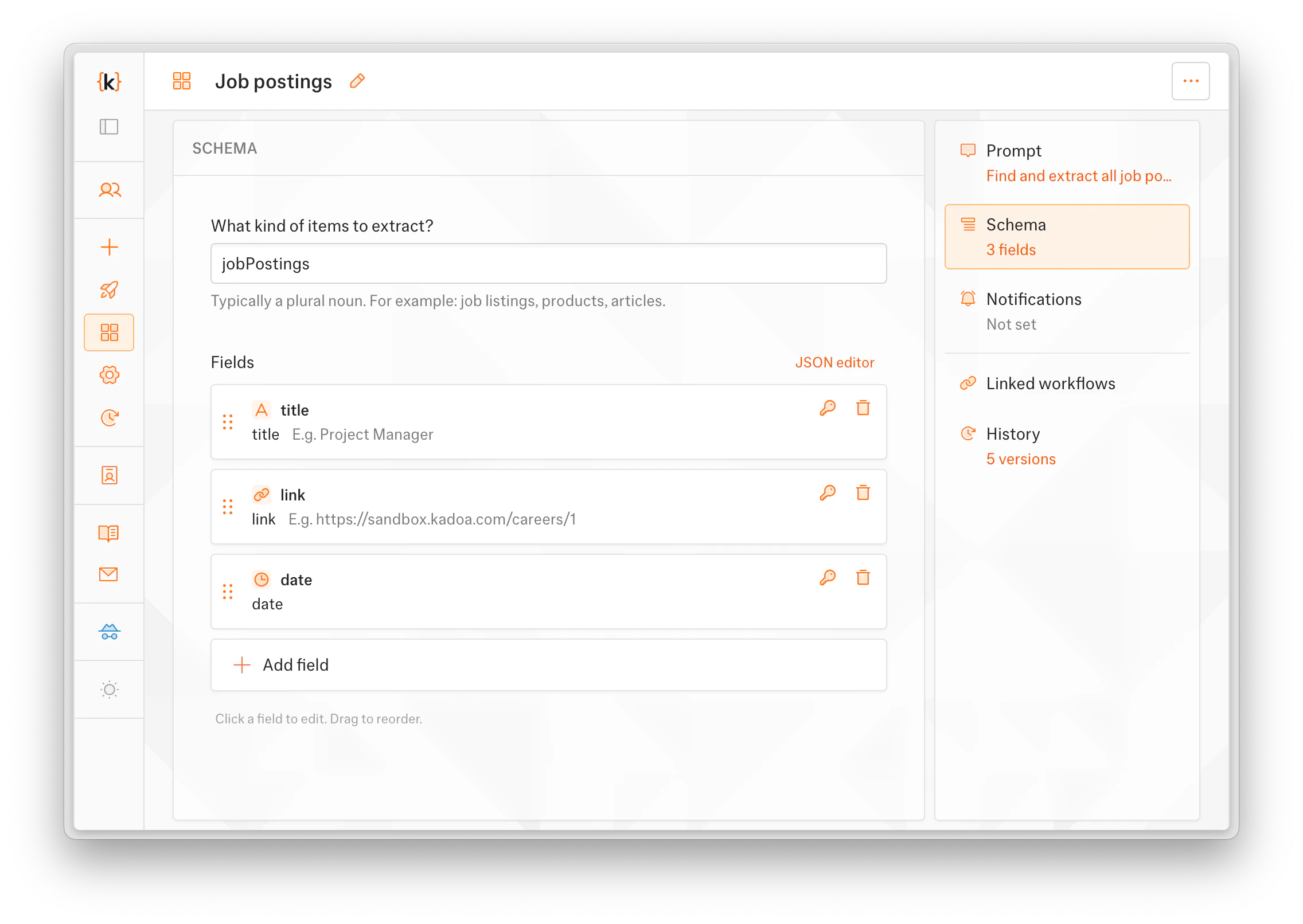
3. Configure the parts you want to include:
* **Prompt**: Enter extraction instructions
* **Schema**: Define fields and entity name using the schema editor
* **Data quality**: Define per-field validation rules
* **Notifications**: Add event subscriptions and choose notification channels
* **Frequency**: Set how often linked workflows run
4. Click **Save changes** to publish the first version
 You don't need to fill in all parts. A template can include any combination of prompt, schema, data quality, notifications, and frequency.
## Save a Workflow as a Template
You can create a template from an existing workflow's configuration:
1. Open the workflow you want to use as a starting point
2. Click the **actions menu** and select **Save as template**
3. Choose which parts to include (prompt, schema, notifications)
4. Enter a name and click **Save**
The workflow is automatically linked to the new template.
## Edit a Template
1. Go to [Templates](https://www.kadoa.com/templates) and click on a template
2. Make your changes in the **Prompt**, **Schema**, or **Notifications** tabs
3. Click **Save changes**
Each save publishes a new version. Previous versions are preserved in the **History** tab.
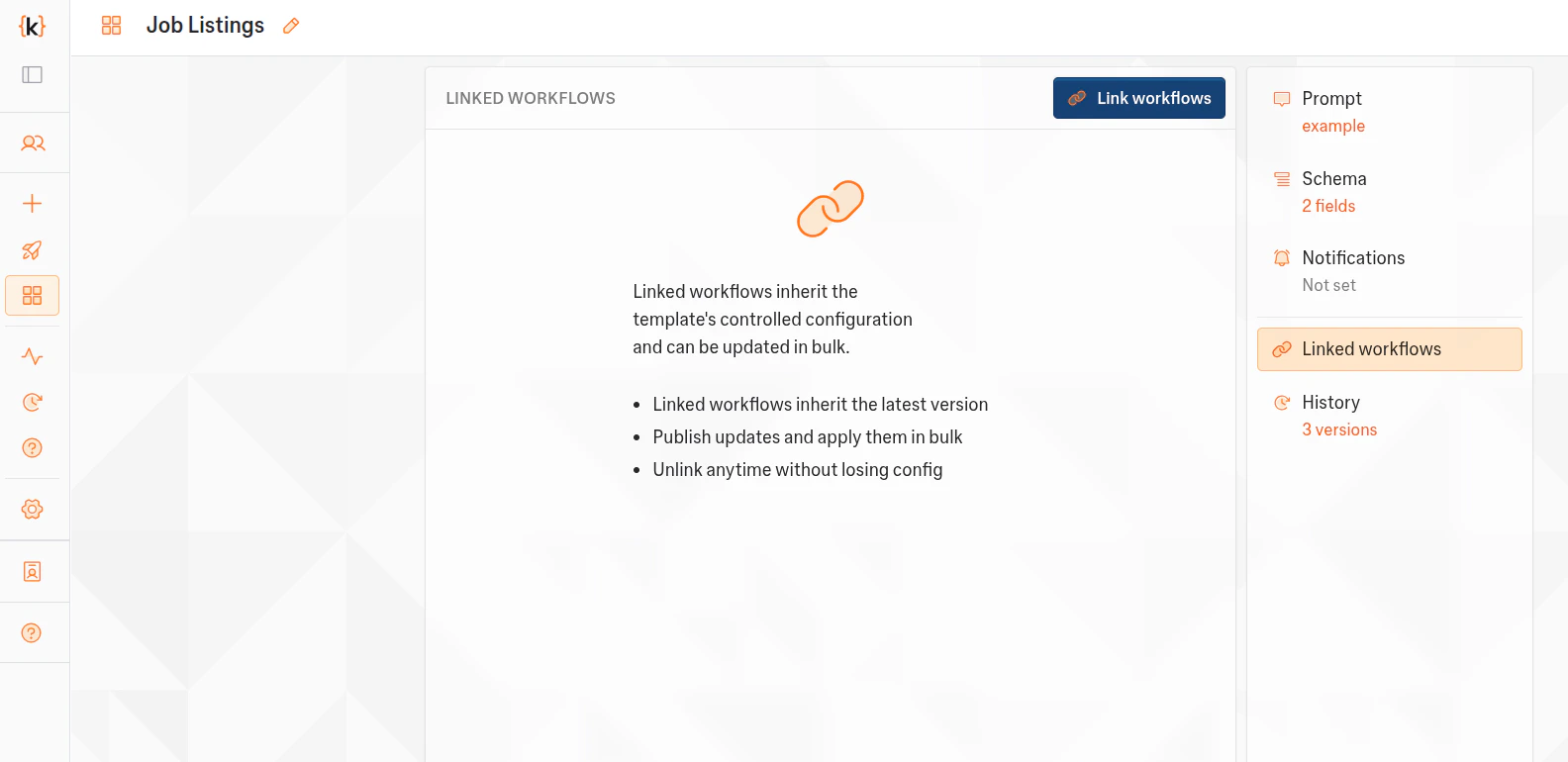
## Apply Template Changes to Linked Workflows
When you publish a new version, linked workflows don't update automatically; you decide when to roll it out.
1. Open the template and switch to the **Linked workflows** tab to see everything connected
2. Click **Link workflows** to pick existing workflows to link, or use the version controls on a linked workflow to roll out a new version
3. Review the affected workflows in the confirmation dialog and confirm
You don't need to fill in all parts. A template can include any combination of prompt, schema, data quality, notifications, and frequency.
## Save a Workflow as a Template
You can create a template from an existing workflow's configuration:
1. Open the workflow you want to use as a starting point
2. Click the **actions menu** and select **Save as template**
3. Choose which parts to include (prompt, schema, notifications)
4. Enter a name and click **Save**
The workflow is automatically linked to the new template.
## Edit a Template
1. Go to [Templates](https://www.kadoa.com/templates) and click on a template
2. Make your changes in the **Prompt**, **Schema**, or **Notifications** tabs
3. Click **Save changes**
Each save publishes a new version. Previous versions are preserved in the **History** tab.
## Apply Template Changes to Linked Workflows
When you publish a new version, linked workflows don't update automatically; you decide when to roll it out.
1. Open the template and switch to the **Linked workflows** tab to see everything connected
2. Click **Link workflows** to pick existing workflows to link, or use the version controls on a linked workflow to roll out a new version
3. Review the affected workflows in the confirmation dialog and confirm
 A few things worth knowing:
* **Active real-time monitors are skipped.** Pause them first if you want them in the batch.
* The parts managed by the template stay read-only on each linked workflow. To change them, edit the template and apply, or unlink the workflow first.
## Delete a Template
1. Go to [Templates](https://www.kadoa.com/templates)
2. Select the template(s) you want to delete
3. Click **Delete**
Deleting a template unlinks all associated workflows. Their configurations are preserved.
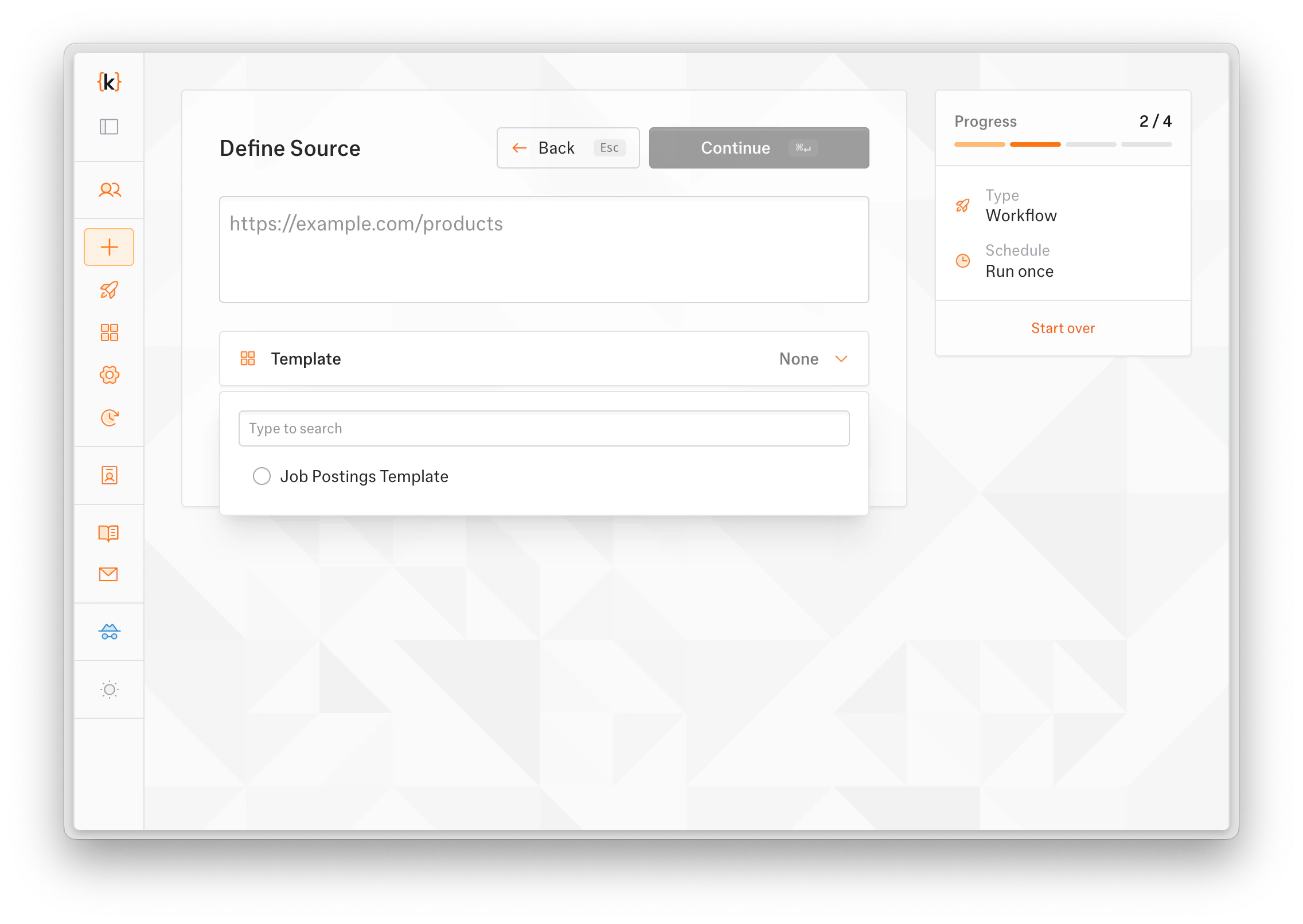
## Use a Template When Creating a Workflow
When creating a new workflow, you can select a template to pre-fill the prompt, schema, and notification settings:
1. Start creating a workflow at [Add Workflow](https://kadoa.com/add)
2. After entering your source URL, click **Use a template** and select a template
3. The wizard pre-fills the relevant steps with the template's configuration
4. Complete the remaining steps and save
The new workflow is automatically linked to the template.
A few things worth knowing:
* **Active real-time monitors are skipped.** Pause them first if you want them in the batch.
* The parts managed by the template stay read-only on each linked workflow. To change them, edit the template and apply, or unlink the workflow first.
## Delete a Template
1. Go to [Templates](https://www.kadoa.com/templates)
2. Select the template(s) you want to delete
3. Click **Delete**
Deleting a template unlinks all associated workflows. Their configurations are preserved.
## Use a Template When Creating a Workflow
When creating a new workflow, you can select a template to pre-fill the prompt, schema, and notification settings:
1. Start creating a workflow at [Add Workflow](https://kadoa.com/add)
2. After entering your source URL, click **Use a template** and select a template
3. The wizard pre-fills the relevant steps with the template's configuration
4. Complete the remaining steps and save
The new workflow is automatically linked to the template.