> ## Documentation Index
> Fetch the complete documentation index at: https://docs.kadoa.com/llms.txt
> Use this file to discover all available pages before exploring further.
# Team Management
> Add members, manage invitations, and assign roles in your team workspace
## Add Team Members
Only Admins and Owners can add and remove team members.
To invite a new team member:
1. Open **Settings** from the sidebar
2. Click **Add members**
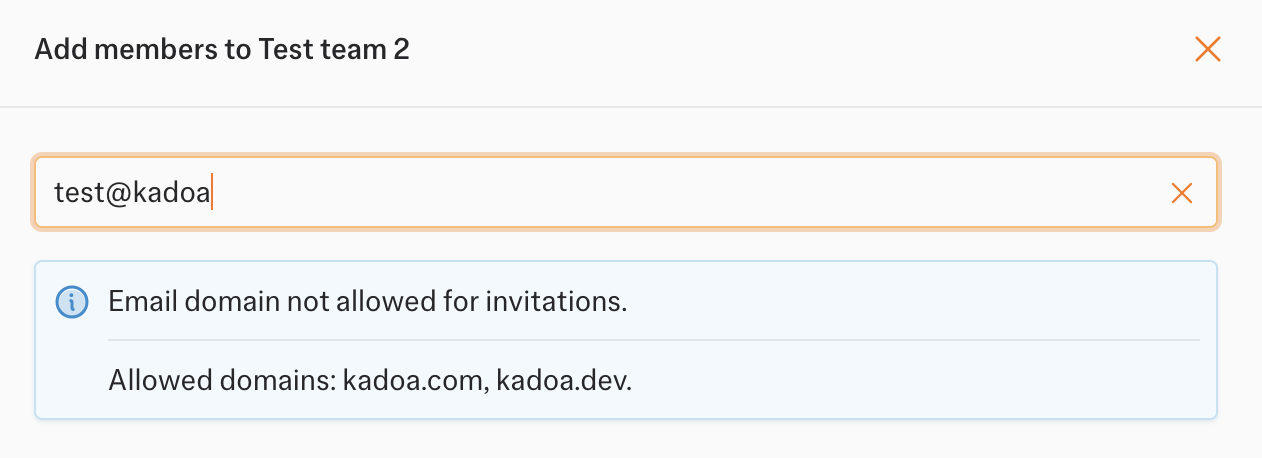
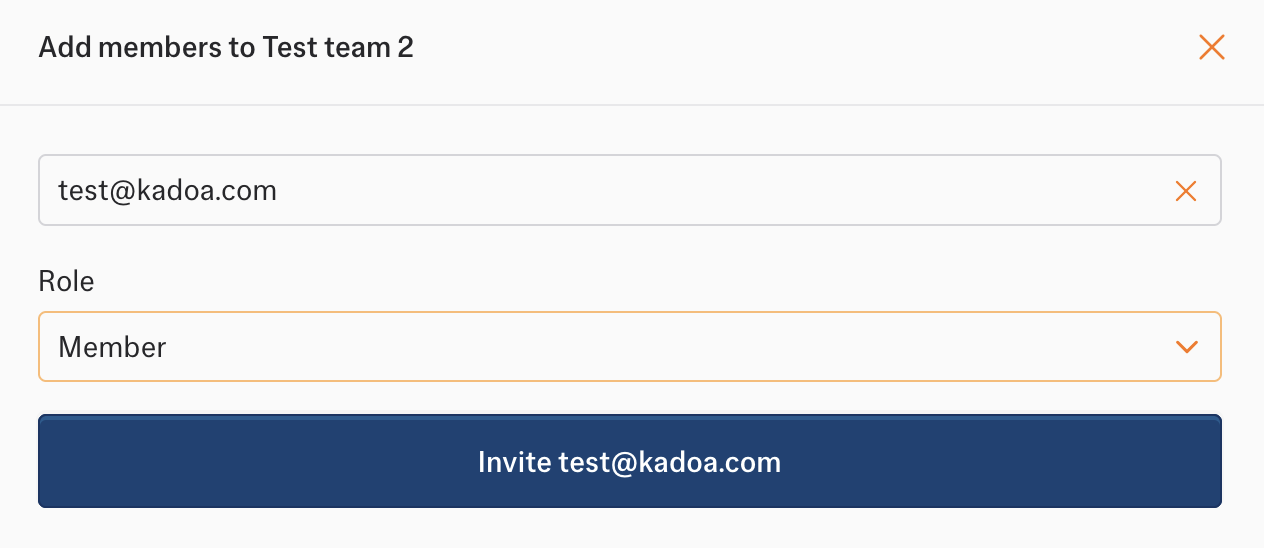
3. Enter the email address of the person you want to invite
4. Select their role (Member, Admin, Viewer, or Compliance Officer)
5. Click **Send invitation**
 **What happens next:**
* If the person has a Kadoa account, they receive an invitation notification
* If they're new to Kadoa, they receive an email to create an account and join your team
* You can resend or cancel pending invitations from **Settings**
## Manage Invitations
From **Settings**, you can:
* **Resend invitations** that recipients missed
* **Cancel invitations** that are no longer needed
* **View invitation status** to see who hasn't joined yet
## Change Member Roles
1. Go to **Settings**
2. Find the team member in the list
3. Click on their current role
4. Select the new role from the dropdown
5. Confirm the change
## Remove Team Members
1. Go to **Settings**
2. Find the team member in the list
3. Click the remove button (trash icon)
4. Confirm the removal
Removing a team member does not delete their workflows. Workflows remain accessible to the team.
## Roles and Permissions
For a detailed breakdown of what each role can do, see [Workspaces → Roles and Permissions](/docs/workspaces#roles-and-permissions).
| Role | Create Workflows | Edit All Workflows | Manage Members | Access Compliance |
| ------------------ | ---------------- | ------------------ | -------------- | ----------------- |
| Member | ✅ | Own only | ❌ | ❌ |
| Admin | ✅ | ✅ | ✅ | Limited |
| Owner | ✅ | ✅ | ✅ | Limited |
| Viewer | ❌ | Read-only | ❌ | ❌ |
| Compliance Officer | ❌ | Read-only | ❌ | ✅ |
## Learn More
* [Workspaces Overview →](/docs/workspaces)
* [SSO Configuration →](/docs/security/sso)
* [SCIM Provisioning →](/docs/security/scim)
**What happens next:**
* If the person has a Kadoa account, they receive an invitation notification
* If they're new to Kadoa, they receive an email to create an account and join your team
* You can resend or cancel pending invitations from **Settings**
## Manage Invitations
From **Settings**, you can:
* **Resend invitations** that recipients missed
* **Cancel invitations** that are no longer needed
* **View invitation status** to see who hasn't joined yet
## Change Member Roles
1. Go to **Settings**
2. Find the team member in the list
3. Click on their current role
4. Select the new role from the dropdown
5. Confirm the change
## Remove Team Members
1. Go to **Settings**
2. Find the team member in the list
3. Click the remove button (trash icon)
4. Confirm the removal
Removing a team member does not delete their workflows. Workflows remain accessible to the team.
## Roles and Permissions
For a detailed breakdown of what each role can do, see [Workspaces → Roles and Permissions](/docs/workspaces#roles-and-permissions).
| Role | Create Workflows | Edit All Workflows | Manage Members | Access Compliance |
| ------------------ | ---------------- | ------------------ | -------------- | ----------------- |
| Member | ✅ | Own only | ❌ | ❌ |
| Admin | ✅ | ✅ | ✅ | Limited |
| Owner | ✅ | ✅ | ✅ | Limited |
| Viewer | ❌ | Read-only | ❌ | ❌ |
| Compliance Officer | ❌ | Read-only | ❌ | ✅ |
## Learn More
* [Workspaces Overview →](/docs/workspaces)
* [SSO Configuration →](/docs/security/sso)
* [SCIM Provisioning →](/docs/security/scim)