> ## Documentation Index
> Fetch the complete documentation index at: https://docs.kadoa.com/llms.txt
> Use this file to discover all available pages before exploring further.
# Getting Started
> Build a web dataset from a single prompt with the Kadoa Assistant
## Create your first workflow
Describe what you want in plain language and the **Kadoa Assistant** builds the workflow: it finds the source, proposes a schema, builds and tests the extraction, and shows you a sample to approve. Open the [Kadoa Dashboard](https://kadoa.com/dashboard) and click **Create your first workflow**.
Building and previewing is **free**. You only use quota (your plan's record allowance) once you approve and run on the full dataset. See [Usage](/docs/usage).
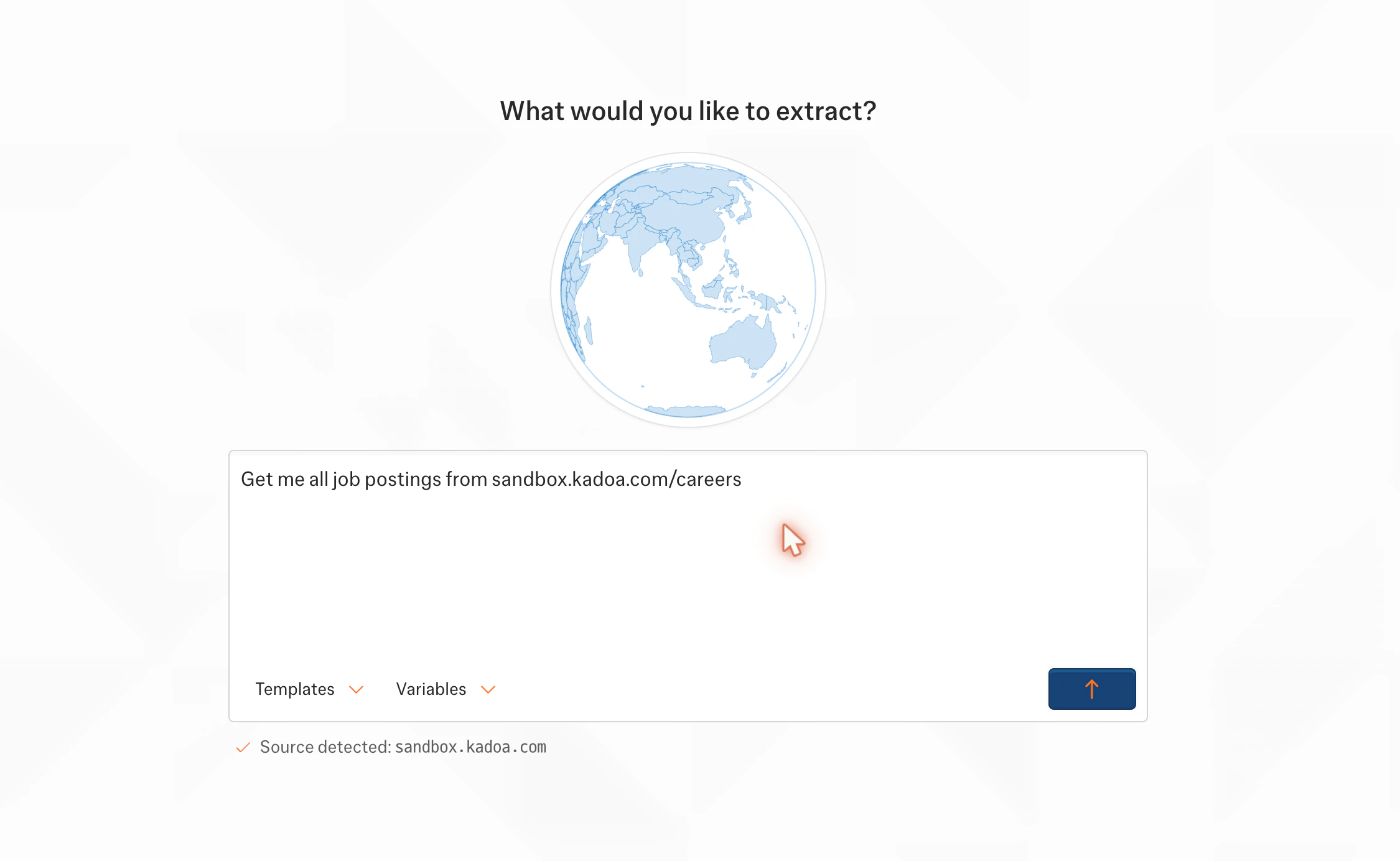
One sentence, for example *"Get me all job postings from sandbox.kadoa.com/careers"*. The Assistant detects the source, or paste your own URL. You can also start from a [template](/docs/ui/templates).
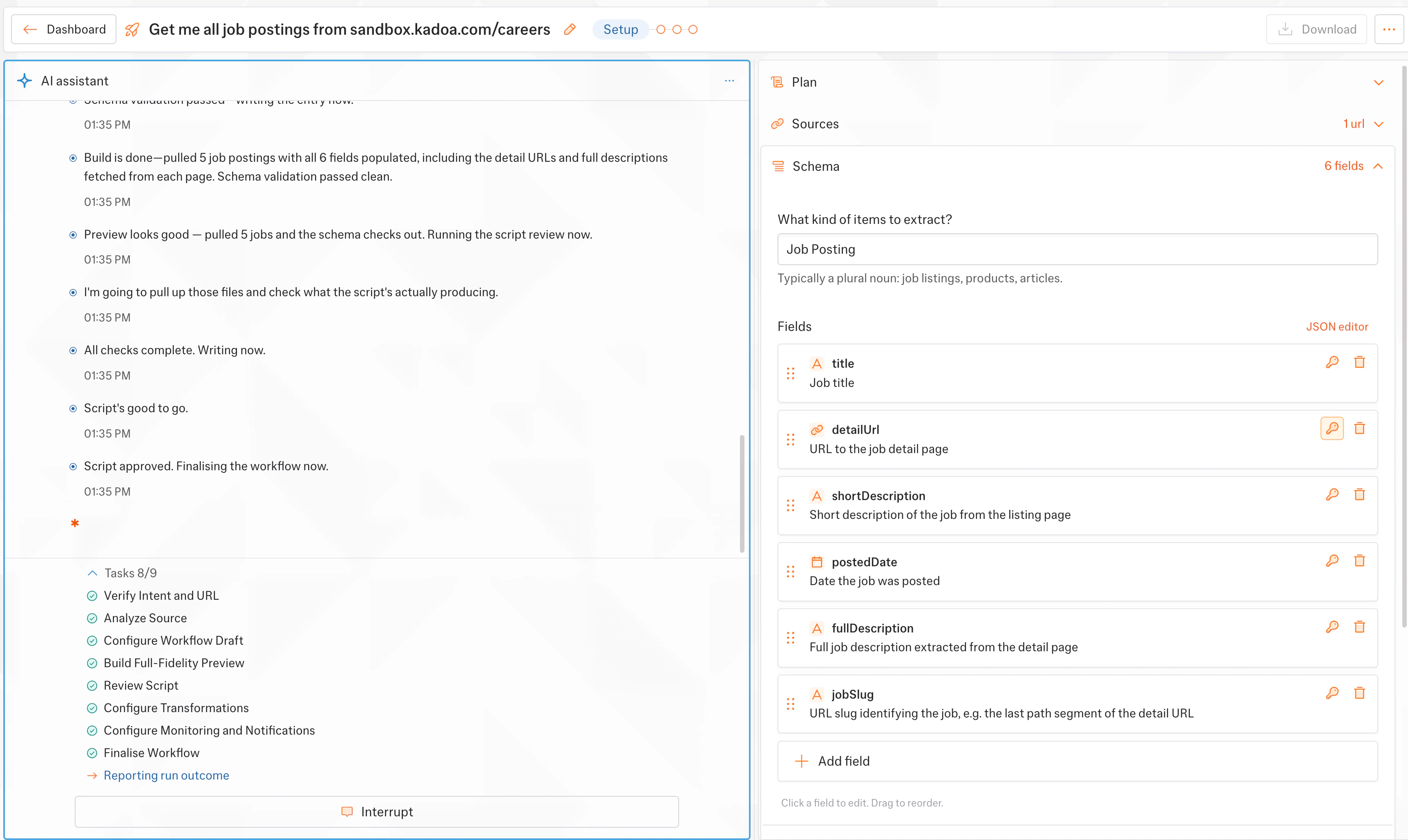
 The Assistant confirms the source, writes the extraction code, and runs a preview, narrating each step. The result is a **deterministic pipeline**: it extracts your data the same way on every run, not a fresh AI guess each time.
 Check the sample data. It is free and uses no quota until you approve.
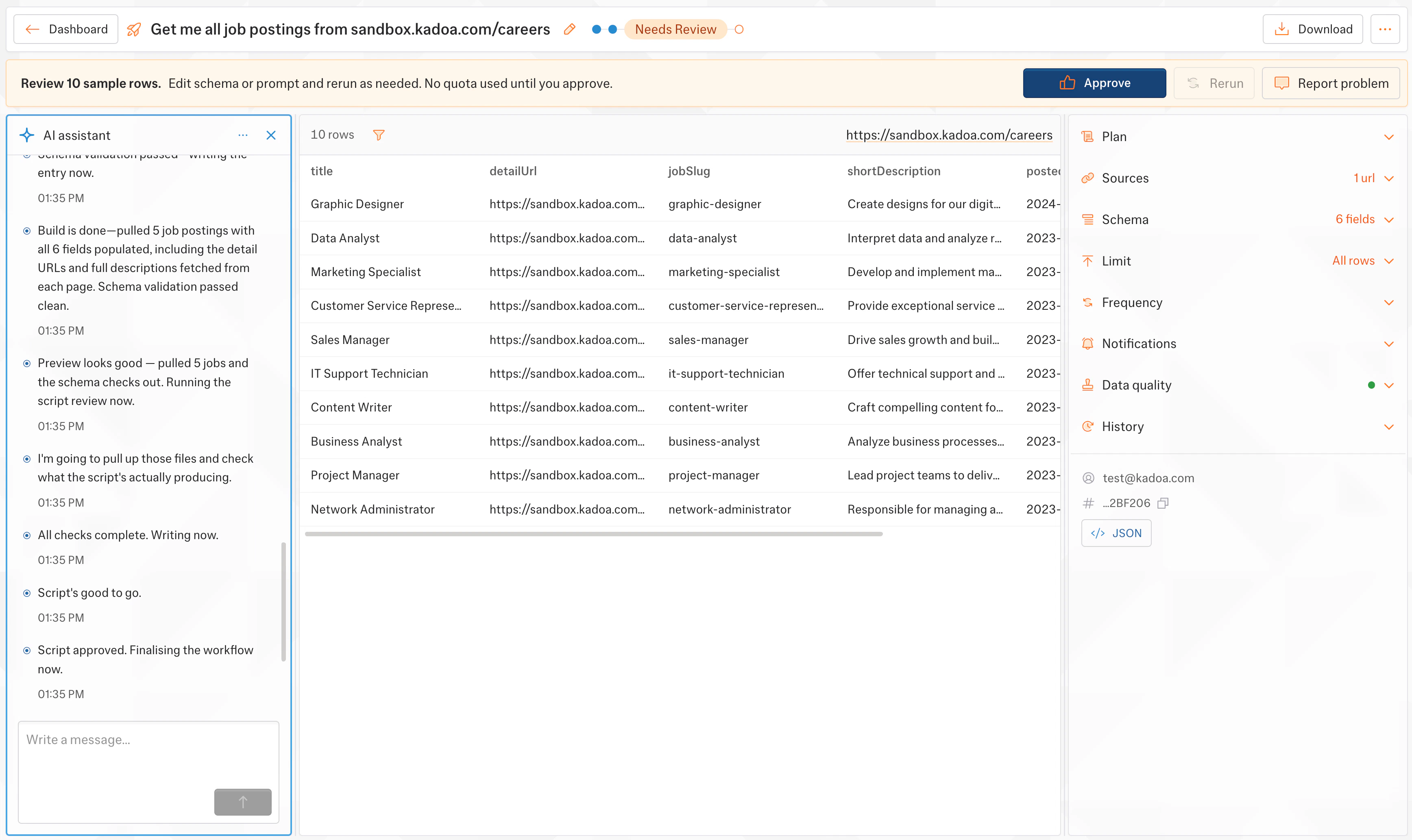 Tell the Assistant what to fix, for example *"add a salary field"* or *"pull location from the detail page"*, and it reruns the preview. Nothing is charged until you approve. For automatic checks on every run, add [Data Quality](/docs/ui/data-quality) rules.
The workflow produces the full dataset. Add [scheduling](/docs/ui/workflows/scheduling), [change detection](/docs/change-detection), and [notifications](/docs/ui/notifications) any time.
Tell the Assistant what to fix, for example *"add a salary field"* or *"pull location from the detail page"*, and it reruns the preview. Nothing is charged until you approve. For automatic checks on every run, add [Data Quality](/docs/ui/data-quality) rules.
The workflow produces the full dataset. Add [scheduling](/docs/ui/workflows/scheduling), [change detection](/docs/change-detection), and [notifications](/docs/ui/notifications) any time.
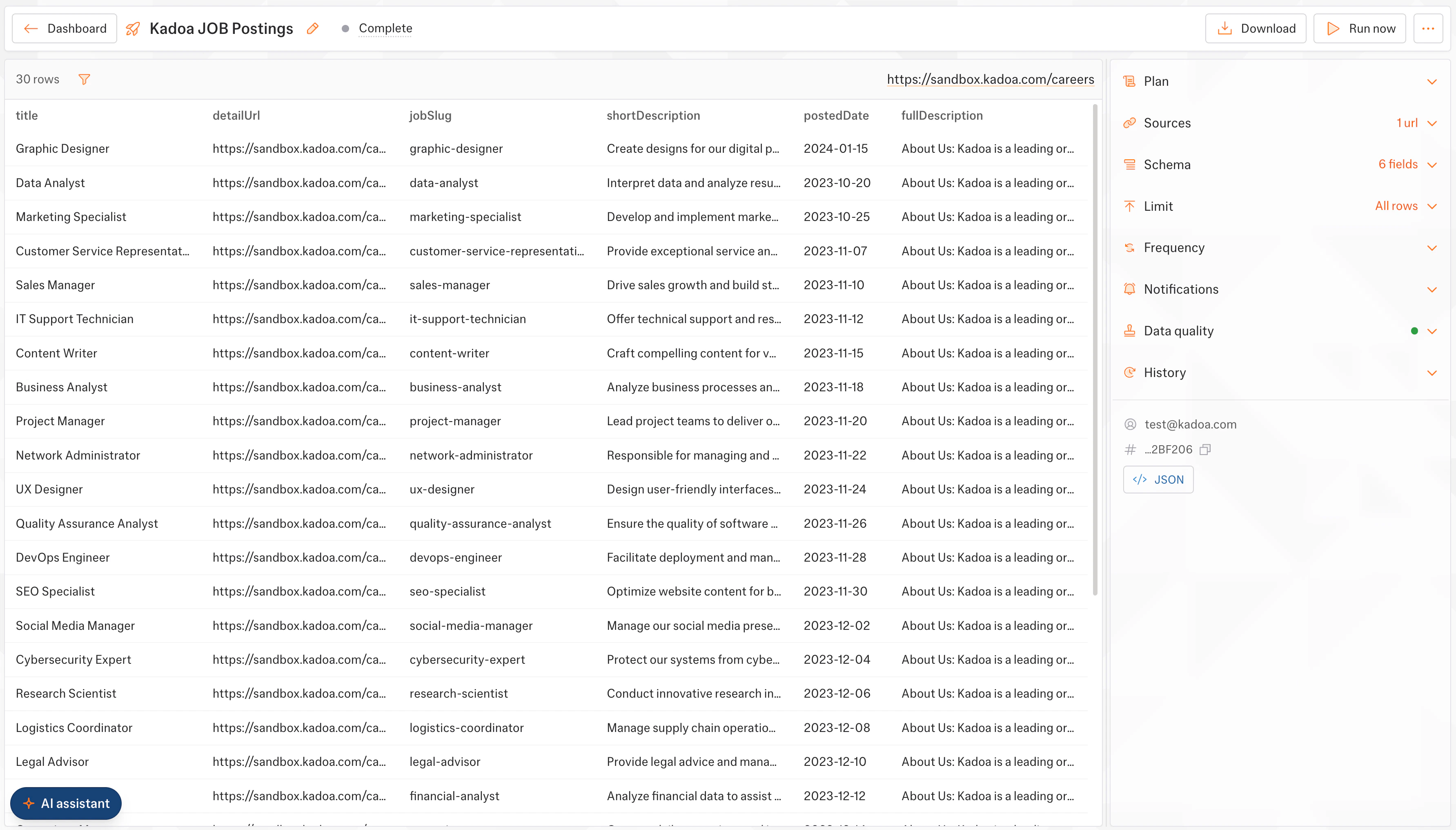 Keep chatting to change fields, navigation, or the schedule, or edit the **Sources**, **Schema**, and **Notifications** panels directly.
## Example
Prompt: *"Get me all job postings from sandbox.kadoa.com/careers"*. The Assistant proposes a five-field schema and returns structured data:
```json theme={null}
[
{
"title": "Graphic Designer",
"detailUrl": "https://sandbox.kadoa.com/careers/career/graphic-designer",
"shortDescription": "Create designs for our digital platforms.",
"postedDate": "2024-01-15"
},
{
"title": "Data Analyst",
"detailUrl": "https://sandbox.kadoa.com/careers/career/data-analyst",
"shortDescription": "Interpret data and analyze results to drive business decisions.",
"postedDate": "2023-10-20"
}
]
```
[Export and access your data →](/docs/ui/data-export) · [Is web scraping allowed?](/docs/security/compliance)
## Next steps
Adjust or add the URLs a workflow extracts from
Customize the fields the Assistant proposed
Validate every run with per-field rules
Review and approve data before it goes live
Keep chatting to change fields, navigation, or the schedule, or edit the **Sources**, **Schema**, and **Notifications** panels directly.
## Example
Prompt: *"Get me all job postings from sandbox.kadoa.com/careers"*. The Assistant proposes a five-field schema and returns structured data:
```json theme={null}
[
{
"title": "Graphic Designer",
"detailUrl": "https://sandbox.kadoa.com/careers/career/graphic-designer",
"shortDescription": "Create designs for our digital platforms.",
"postedDate": "2024-01-15"
},
{
"title": "Data Analyst",
"detailUrl": "https://sandbox.kadoa.com/careers/career/data-analyst",
"shortDescription": "Interpret data and analyze results to drive business decisions.",
"postedDate": "2023-10-20"
}
]
```
[Export and access your data →](/docs/ui/data-export) · [Is web scraping allowed?](/docs/security/compliance)
## Next steps
Adjust or add the URLs a workflow extracts from
Customize the fields the Assistant proposed
Validate every run with per-field rules
Review and approve data before it goes live