> ## Documentation Index
> Fetch the complete documentation index at: https://docs.kadoa.com/llms.txt
> Use this file to discover all available pages before exploring further.
# Kadoa Assistant
> Change and debug your workflows by chatting in natural language
The **Kadoa Assistant** builds your workflows and keeps maintaining them. Once a workflow exists, open the chat any time to change how it works or debug a run that came out wrong. For the first build see [Getting Started](/docs/ui/getting-started); for writing the extraction prompt see [Prompts](/docs/workflows/prompts).
## Open the Assistant
On a workflow built with the Assistant, open it and click **AI assistant**. The chat opens with the workflow in context, so you can get straight to the problem.
Each workflow has one Assistant chat. If a teammate already opened it, you join the same conversation.
## Debug with the Assistant
Debugging is a conversation. Describe what is wrong, and the Assistant investigates, makes the change, and reruns a sample so you can confirm the fix before anything goes live.
Say what is wrong and what you expected, for example *"The salary field is empty on most rows, but the postings show a salary near the title."*
The Assistant looks into the workflow, adjusts the extraction, schema, navigation, or transformation, and reruns a sample preview. It tells you what it changed as it works.
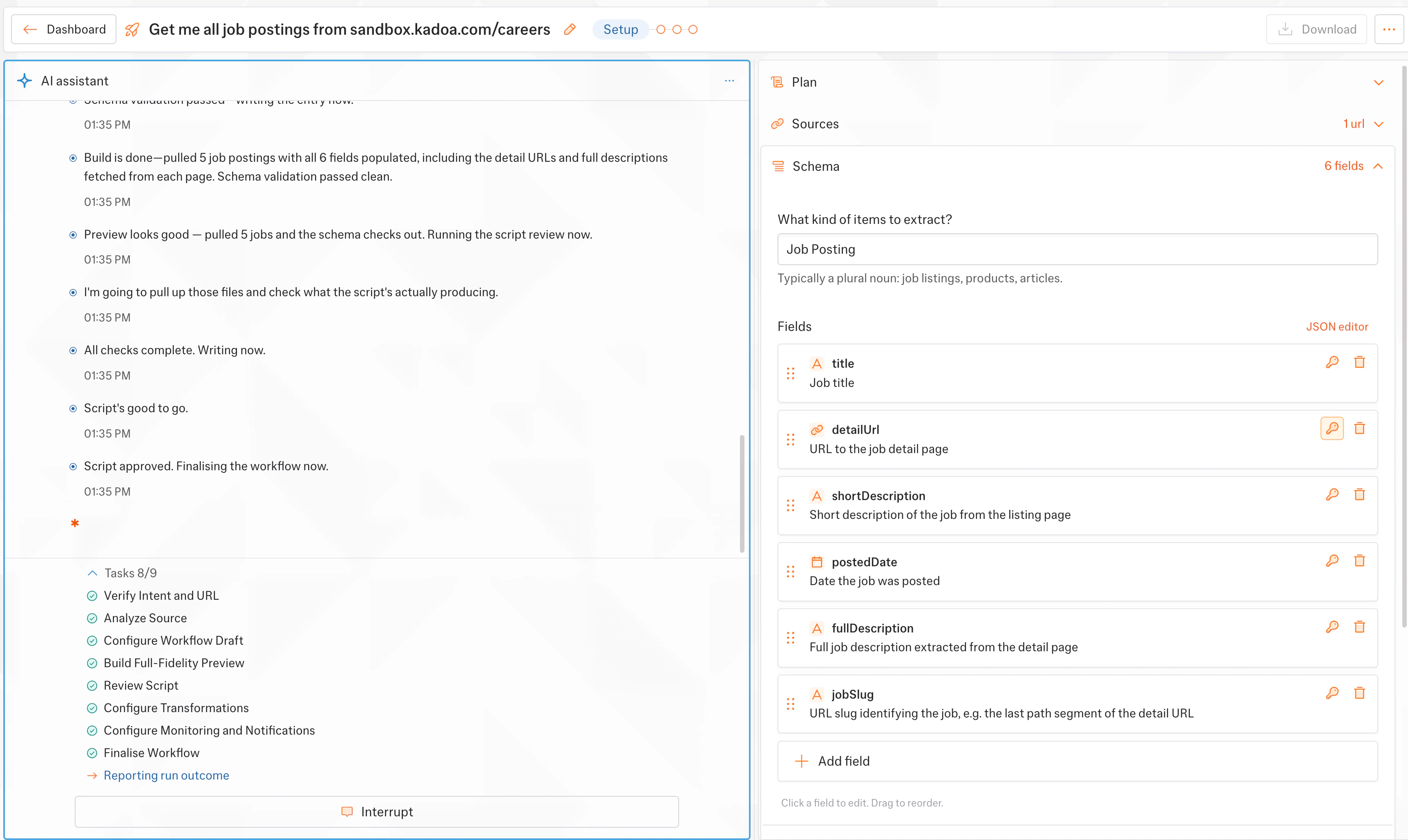 Check the updated rows.
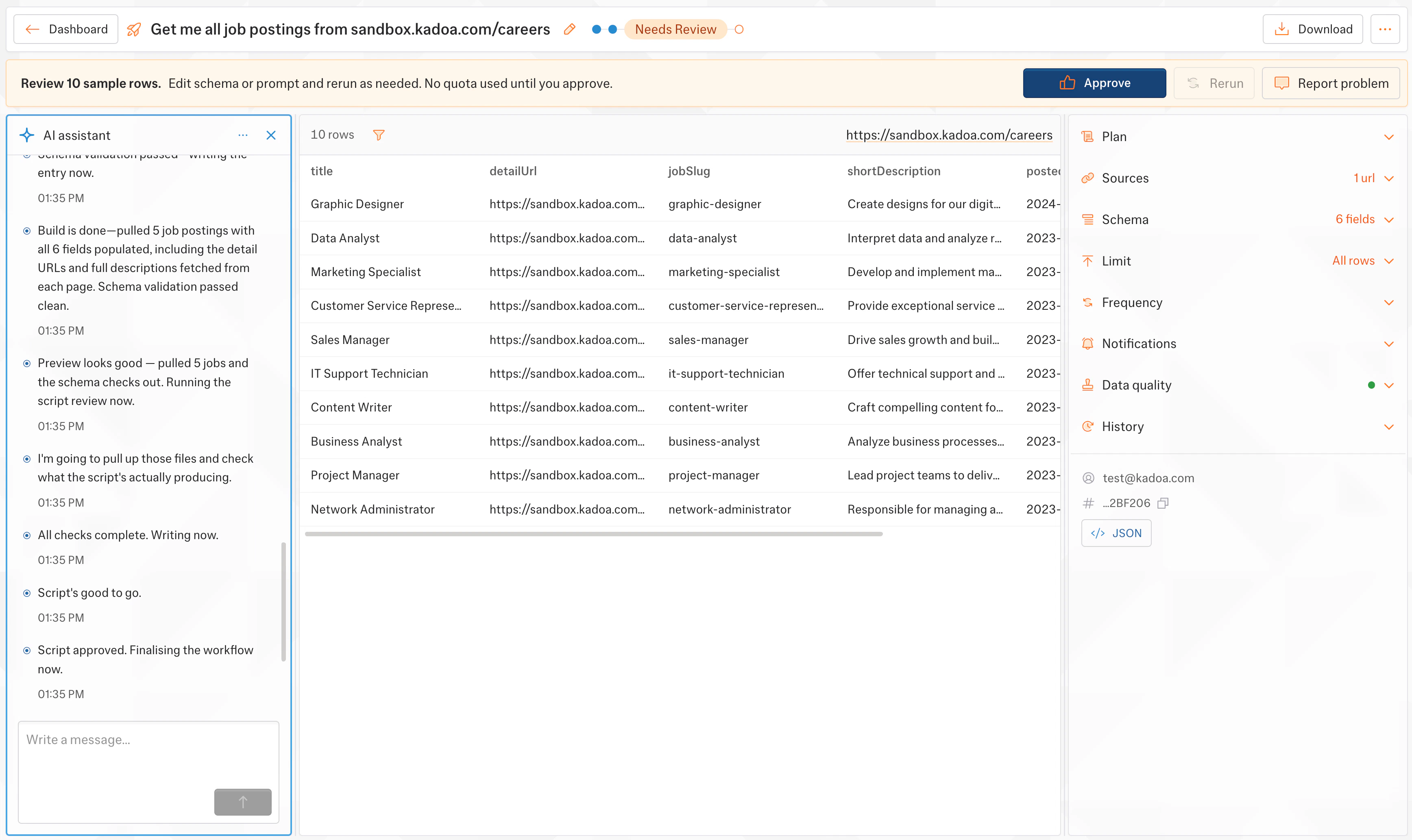 If the sample looks right, approve to apply the change. If not, reply with what is still off and the Assistant reruns. Repeat as many times as you need.
The Assistant can investigate and fix issues across the whole workflow:
| If you see... | Ask the Assistant to... |
| ------------------------------------------------------- | ---------------------------------------------------------------------------------------------------------------------------------------------- |
| A field that is empty or wrong | Find the value on the page and extract it correctly |
| Rows missing or pagination stopping early | Keep paginating until there are no more results |
| A run that looks stale or returned too little | Look into why and fix it |
| Output in the wrong format | Normalize a field, for example dates to `YYYY-MM-DD` |
| A source that started returning blocked or empty pages | Investigate the access issue and adapt |
| The wrong fields, schedule, alerts, or monitored fields | Change the schema, [schedule](/docs/ui/workflows/scheduling), [notifications](/docs/ui/notifications), or [monitoring](/docs/change-detection) |
For automatic checks on every run instead of spot-fixing, add [Data Quality](/docs/ui/data-quality) rules.
## What to say
Brief the Assistant like a colleague: lead with the symptom and the result you expect, and name the field, the page, and what the correct value should look like. The same advice as [writing a good prompt](/docs/workflows/prompts) applies.
| Vague | Specific |
| --------------------- | ----------------------------------------------------------------------------------------------------------------------- |
| "The data is broken." | "Since yesterday the `price` field is null on every row. The source still shows a price on each product page." |
| "Get more data." | "Open each fund profile and extract name, strategy, AUM, and inception date. Continue until there are no more results." |
| "Fix the dates." | "`published_date` comes back as free text like 'June 3, 2026'. Normalize it to YYYY-MM-DD." |
Type `@` in the chat to reference a saved [variable](/docs/workflows/variables) or [template](/docs/ui/templates), for example a login value or a known source pattern.
## When the Assistant can't fix it
The Assistant tells you and automatically hands the issue to [Kadoa support](/docs/support-center). For how failed runs are classified and auto-recovered, see [Error Handling](/docs/workflows/error-handling).
## Next steps
Write prompts that get the best results
Review and approve data before it goes live
Understand failures and recovery
Validate every run with per-field rules
If the sample looks right, approve to apply the change. If not, reply with what is still off and the Assistant reruns. Repeat as many times as you need.
The Assistant can investigate and fix issues across the whole workflow:
| If you see... | Ask the Assistant to... |
| ------------------------------------------------------- | ---------------------------------------------------------------------------------------------------------------------------------------------- |
| A field that is empty or wrong | Find the value on the page and extract it correctly |
| Rows missing or pagination stopping early | Keep paginating until there are no more results |
| A run that looks stale or returned too little | Look into why and fix it |
| Output in the wrong format | Normalize a field, for example dates to `YYYY-MM-DD` |
| A source that started returning blocked or empty pages | Investigate the access issue and adapt |
| The wrong fields, schedule, alerts, or monitored fields | Change the schema, [schedule](/docs/ui/workflows/scheduling), [notifications](/docs/ui/notifications), or [monitoring](/docs/change-detection) |
For automatic checks on every run instead of spot-fixing, add [Data Quality](/docs/ui/data-quality) rules.
## What to say
Brief the Assistant like a colleague: lead with the symptom and the result you expect, and name the field, the page, and what the correct value should look like. The same advice as [writing a good prompt](/docs/workflows/prompts) applies.
| Vague | Specific |
| --------------------- | ----------------------------------------------------------------------------------------------------------------------- |
| "The data is broken." | "Since yesterday the `price` field is null on every row. The source still shows a price on each product page." |
| "Get more data." | "Open each fund profile and extract name, strategy, AUM, and inception date. Continue until there are no more results." |
| "Fix the dates." | "`published_date` comes back as free text like 'June 3, 2026'. Normalize it to YYYY-MM-DD." |
Type `@` in the chat to reference a saved [variable](/docs/workflows/variables) or [template](/docs/ui/templates), for example a login value or a known source pattern.
## When the Assistant can't fix it
The Assistant tells you and automatically hands the issue to [Kadoa support](/docs/support-center). For how failed runs are classified and auto-recovered, see [Error Handling](/docs/workflows/error-handling).
## Next steps
Write prompts that get the best results
Review and approve data before it goes live
Understand failures and recovery
Validate every run with per-field rules