> ## Documentation Index
> Fetch the complete documentation index at: https://docs.kadoa.com/llms.txt
> Use this file to discover all available pages before exploring further.
# Change Detection
> How Kadoa detects and classifies data changes between workflow runs
To enable change detection, two things are **required**:
1. Your workflow must be scheduled (hourly, daily, etc.) or set to real-time mode. Configure scheduling in the [UI](/docs/ui/workflows/sources) or via [Code](/docs/sdk/workflows/create).
2. Your workflow must subscribe to the data change event. Without this subscription, change diffs will not be delivered.
Make sure both conditions are met for change tracking to function.
## Workflow Modes
| Mode | How It Works | Availability |
| ------------- | -------------------------------------------------- | ------------ |
| **Scheduled** | Compares data between runs (hourly, daily, weekly) | All plans |
| **Real-time** | Continuously monitors for changes | All plans |
Both modes use the same change detection algorithm described below.
## Algorithm Overview
The change detection process follows a **three-phase matching algorithm**:
1. **Exact Matches**: Objects that are completely identical (with whitespace normalization)
2. **Partial Matches**: Objects that are similar enough to be considered the same but with changes
3. **Leftovers**: Remaining objects classified as either new or removed
## Matching Methods
### Key Field Matching (Optional)
When **key fields** are configured in your schema, objects are matched based on these fields. **ALL key fields must match** for objects to be considered the same:
```json theme={null}
// Previous run
{
"id": "12345",
"title": "Product A",
"price": "$100"
}
// Current run
{
"id": "12345", // Key field matches
"title": "Product A Pro", // Changed
"price": "$150" // Changed
}
```
**Result**: `changed` - ID matches, so same object with updates
**Key Field Behavior**:
* Key fields defined with `isKey: true` in your [schema](/docs/workflows/schemas)
* Common key fields: `id`, `url`, `link`, `sku`
* Key fields should use scalar `STRING`, `NUMBER`, or `LINK` types
* If ANY key field changes, objects treated as `removed` + `added` (not `changed`)
### Traditional Field Matching (Default)
When no key fields are configured, objects are matched if they share **>50% of their fields**:
```json theme={null}
// Previous run
{
"name": "John Doe",
"age": "25",
"city": "New York"
}
// Current run
{
"name": "John Doe", // Same
"age": "26", // Changed
"city": "New York" // Same
}
```
**Field Match Calculation**: 2 out of 3 fields match = 66.7% > 50%
**Result**: `changed` - Field match ratio exceeds threshold
**Notes**:
* Only string fields considered in ratio calculation
* Empty fields and non-string values excluded
## Change Types
| Type | Description |
| ----------- | ---------------------------------------------------------- |
| **Changed** | Object matched but some fields differ |
| **Added** | Object exists in current run but no match in previous run |
| **Removed** | Object existed in previous run but no match in current run |
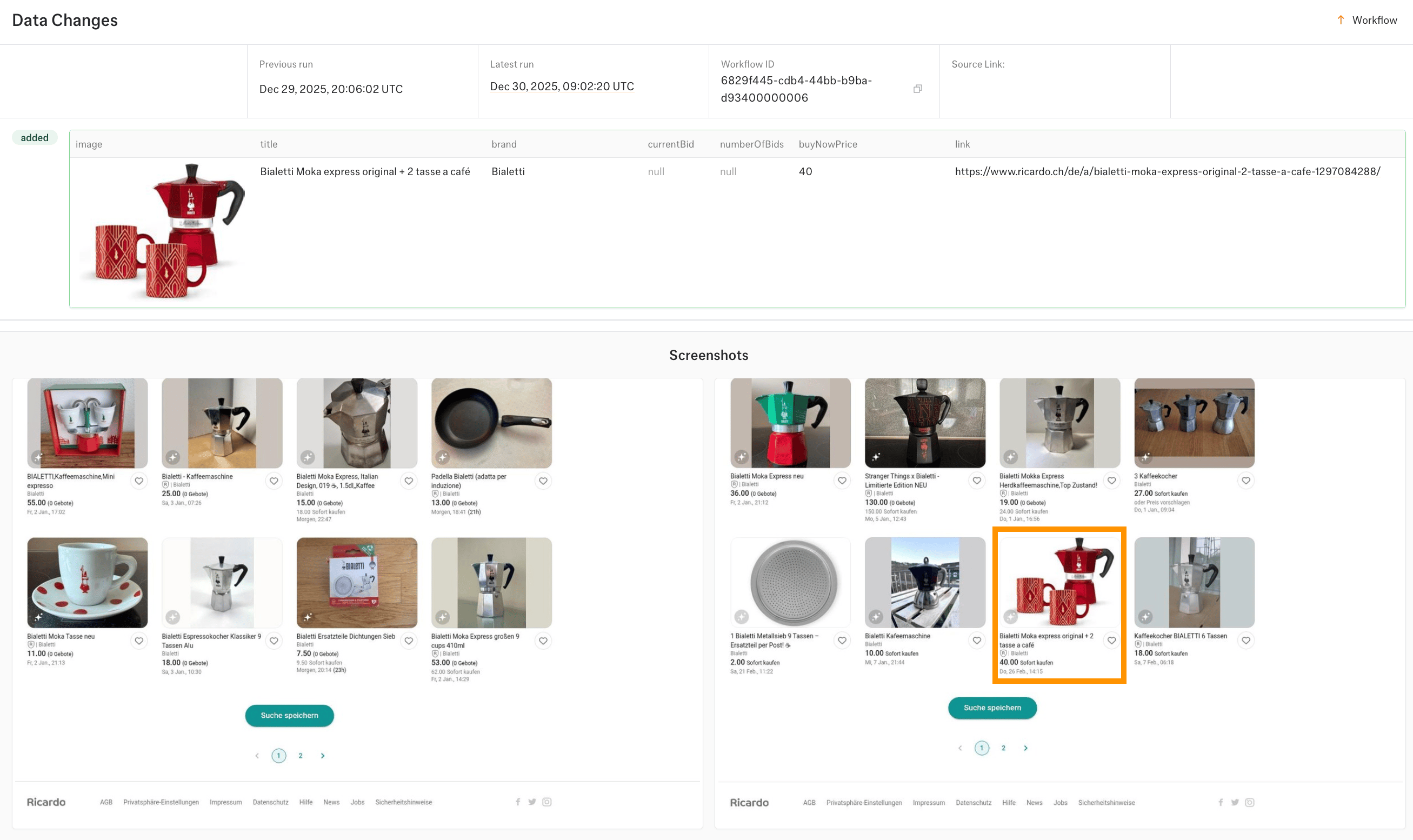
## How Changes Appear
### In the UI
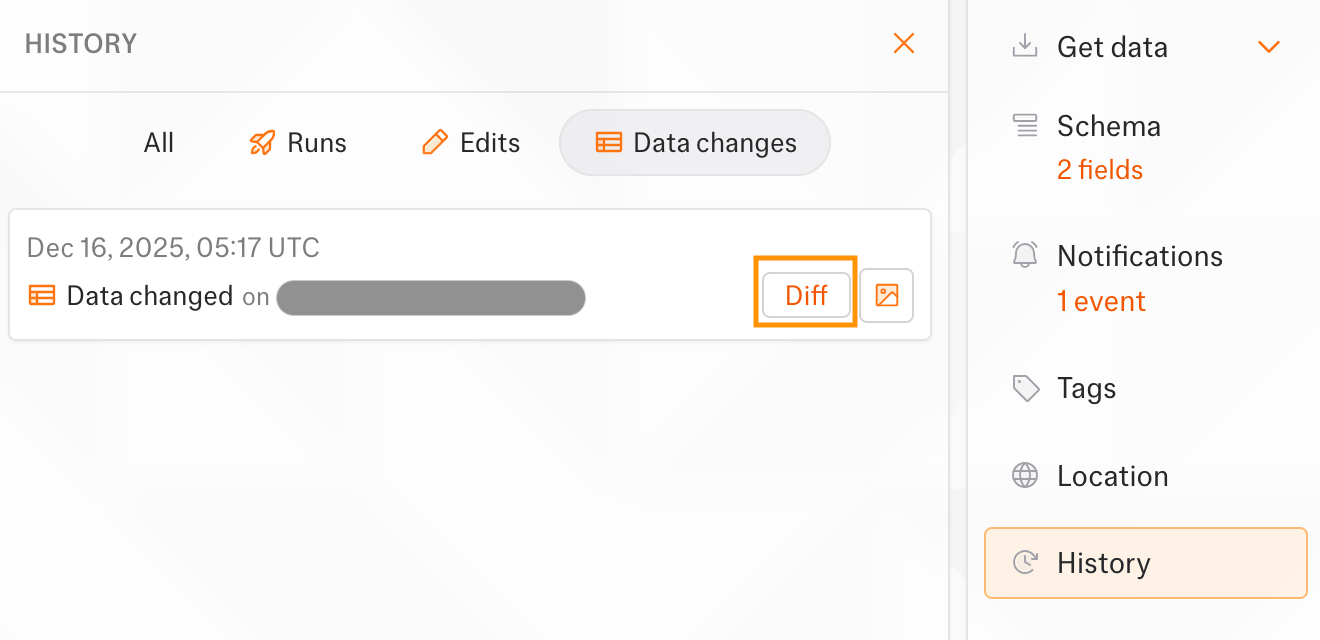
View detected changes directly in your workflow's run history:
1. Open your workflow
2. Click the **History** tab on the right-hand side
3. Find a run with data changes
4. Click on the **Diff** component to view changes
The diff view displays:
* Change type indicators (added, removed, changed)
* Visual diff highlighting for modified fields
* Timestamps for when changes were detected
 See [Data Delivery](/docs/integrations/overview) for notification channels, APIs, and payload formats.
## Method Comparison
| Method | When Used | Logic | Best For |
| ---------------------------------- | ----------------------------------------------------------- | --------------------------------- | ------------------------------------------------- |
| **Key Field Matching** | Set `isKeyField: true` in [schema](/docs/workflows/schemas) | ALL key fields must match exactly | Reliable matching even with major content changes |
| **Traditional Matching** (Default) | No key fields configured | >50% of fields must match | Simple setup, works without configuration |
## Setup Data Change
### Fields
Select which fields from your [schema](/docs/workflows/schemas) to monitor. Only changes to selected fields will trigger notifications. By default, Kadoa monitor all fields.
### Change Types
Choose which types of changes to track:
| Type | Description |
| ----------- | ---------------------------- |
| **Changed** | Existing record was modified |
| **Added** | New record appeared |
| **Removed** | Record no longer exists |
### Conditions
Add conditions to filter notifications based on field values. Combine multiple conditions using logical operators.
**Logical Operators:**
* **Any** (OR): Notify if any condition matches
* **All** (AND): Notify only if all conditions match
**Available Operators:**
| Operator | Description | Example |
| ------------------ | ------------------------- | -------------------------------- |
| `contains` | Field value contains text | title contains "sale" |
| `does not contain` | Field value excludes text | title does not contain "expired" |
| `equals` | Exact match | status equals "active" |
| `does not equal` | Does not match | status does not equal "draft" |
| `greater than` | Numeric comparison | price greater than 100 |
| `less than` | Numeric comparison | stock less than 10 |
| `before` | Date is before value | published before 2025-01-01 |
| `after` | Date is after value | published after 2025-01-01 |
| `in the last` | Date within N days | published in the last 7 days |
| `is empty` | Field has no value | description is empty |
| `is not empty` | Field has a value | price is not empty |
### Date Filtering
Use `before`, `after`, or `in the last` operators to filter changes by date. Useful for monitoring news feeds or content where you only care about recent updates.
Your data must include a date field for date filtering to work.
**Supported Date Formats:**
* ISO: `2025-01-15` (recommended)
* US/EU: `01/15/2025`, `15/01/2025`
* Month names: `Jan 15, 2025`
* Timestamps: `2025-01-15T10:30:00Z`
## Retrieve Historical Changes
View change history for your monitoring workflows.
1. Open your workflow
2. Click the **History** tab
3. Select a run to view its changes
See [Data Delivery](/docs/integrations/overview) for notification channels, APIs, and payload formats.
## Method Comparison
| Method | When Used | Logic | Best For |
| ---------------------------------- | ----------------------------------------------------------- | --------------------------------- | ------------------------------------------------- |
| **Key Field Matching** | Set `isKeyField: true` in [schema](/docs/workflows/schemas) | ALL key fields must match exactly | Reliable matching even with major content changes |
| **Traditional Matching** (Default) | No key fields configured | >50% of fields must match | Simple setup, works without configuration |
## Setup Data Change
### Fields
Select which fields from your [schema](/docs/workflows/schemas) to monitor. Only changes to selected fields will trigger notifications. By default, Kadoa monitor all fields.
### Change Types
Choose which types of changes to track:
| Type | Description |
| ----------- | ---------------------------- |
| **Changed** | Existing record was modified |
| **Added** | New record appeared |
| **Removed** | Record no longer exists |
### Conditions
Add conditions to filter notifications based on field values. Combine multiple conditions using logical operators.
**Logical Operators:**
* **Any** (OR): Notify if any condition matches
* **All** (AND): Notify only if all conditions match
**Available Operators:**
| Operator | Description | Example |
| ------------------ | ------------------------- | -------------------------------- |
| `contains` | Field value contains text | title contains "sale" |
| `does not contain` | Field value excludes text | title does not contain "expired" |
| `equals` | Exact match | status equals "active" |
| `does not equal` | Does not match | status does not equal "draft" |
| `greater than` | Numeric comparison | price greater than 100 |
| `less than` | Numeric comparison | stock less than 10 |
| `before` | Date is before value | published before 2025-01-01 |
| `after` | Date is after value | published after 2025-01-01 |
| `in the last` | Date within N days | published in the last 7 days |
| `is empty` | Field has no value | description is empty |
| `is not empty` | Field has a value | price is not empty |
### Date Filtering
Use `before`, `after`, or `in the last` operators to filter changes by date. Useful for monitoring news feeds or content where you only care about recent updates.
Your data must include a date field for date filtering to work.
**Supported Date Formats:**
* ISO: `2025-01-15` (recommended)
* US/EU: `01/15/2025`, `15/01/2025`
* Month names: `Jan 15, 2025`
* Timestamps: `2025-01-15T10:30:00Z`
## Retrieve Historical Changes
View change history for your monitoring workflows.
1. Open your workflow
2. Click the **History** tab
3. Select a run to view its changes
 The `/changes` endpoint returns all historical data changes. [View full API reference →](/api-reference/monitoring/get-all-changes)
```bash theme={null}
GET https://api.kadoa.com/v4/changes
```
Filter by workflow and date range:
```bash theme={null}
GET https://api.kadoa.com/v4/changes?startDate=2024-11-01T00:00:00Z&endDate=2024-11-30T23:59:59Z
```
### Response Format
Each change includes a `differences` array:
```json theme={null}
{
"differences": [
{
"type": "changed",
"fields": [
{
"key": "title",
"previousValue": "Old Title",
"value": "New Title"
}
]
}
]
}
```
**`differences` structure:**
* `type`: Change type (`added`, `removed`, or `changed`)
* `fields`: All fields of the object
**Field change properties:**
* `key`: Field name
* `value`: Current value
* `previousValue`: Previous value (only for `changed` type)
The `/changes` endpoint returns all historical data changes. [View full API reference →](/api-reference/monitoring/get-all-changes)
```bash theme={null}
GET https://api.kadoa.com/v4/changes
```
Filter by workflow and date range:
```bash theme={null}
GET https://api.kadoa.com/v4/changes?startDate=2024-11-01T00:00:00Z&endDate=2024-11-30T23:59:59Z
```
### Response Format
Each change includes a `differences` array:
```json theme={null}
{
"differences": [
{
"type": "changed",
"fields": [
{
"key": "title",
"previousValue": "Old Title",
"value": "New Title"
}
]
}
]
}
```
**`differences` structure:**
* `type`: Change type (`added`, `removed`, or `changed`)
* `fields`: All fields of the object
**Field change properties:**
* `key`: Field name
* `value`: Current value
* `previousValue`: Previous value (only for `changed` type)